Skip to content
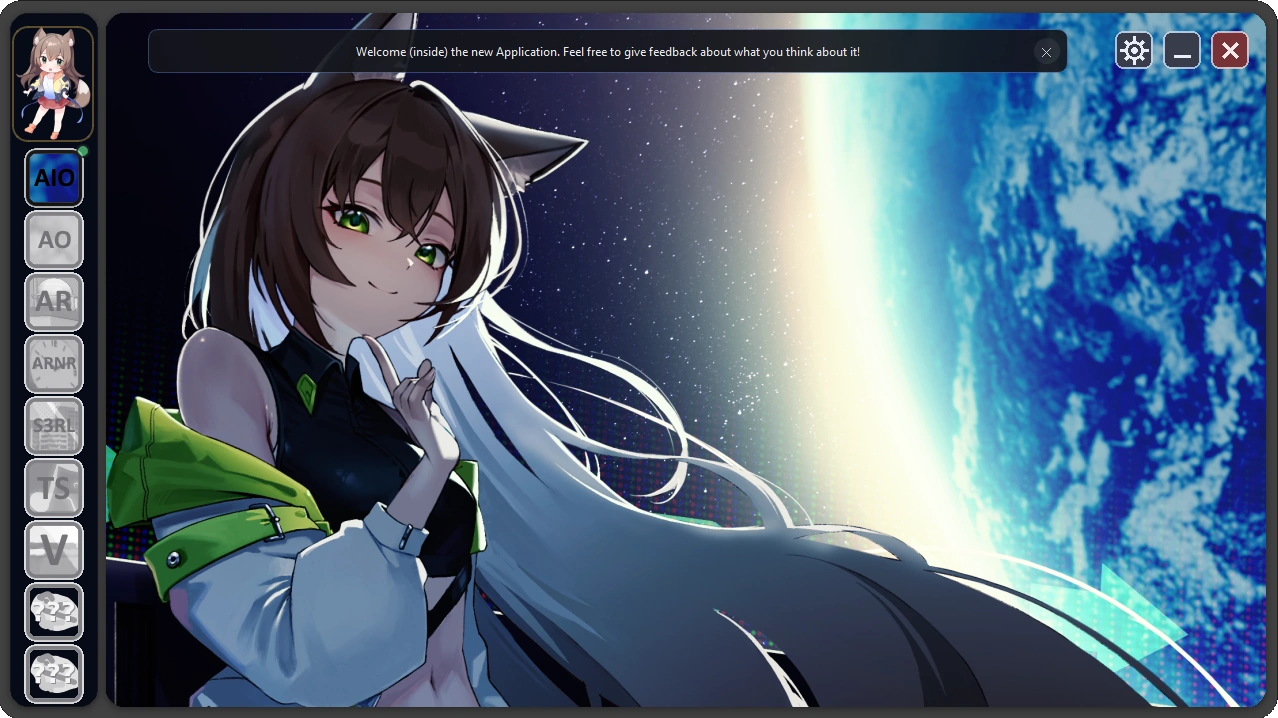
EdmsUpdater is a Windows and Linux desktop app (C++/Qt) that downloads
and keeps my song packs and the Bundle up to date.
You can pick individual packs, bundles or “download everything” choosing your preferred quality once.
It downloads from multiple hosts with resume, retries, size checks, and progress tracking,
then extracts straight into the Songs folder — all behind a polished, image-skinned interface.
You can download the new application with the link below.
Download
Last Build Version: 9 October 2026
Download from Pixeldrain:
Windows:
Download from 1Fichier:
Windows:
If you need help to start the application on Linux. [Click Here]
! – If both 1Fichier and Pixeldrain download links fail –>
Download from the Website:
Windows:
Linux: [.ZIP (52.3MB)] (*Currently Supported)
(Only version that need to be extracted manually on Linux)
If you still have issues downloading the application: Contact me or Join the Edmspack Discord
Currently not supported:
Windows 32 Bits and Mac
VirusTotal Scan:
VirusTotal Scan (Antivirus) – Application: [Click Here] (Nothing)
VirusTotal Scan (Antivirus) – .EXE Installer: [Click Here] (1 False Positive)
VirusTotal Scan (Antivirus) – .AppImage (Linux): [Click Here] (Nothing)
The .EXE Installer come from the SFX Archive of 7zip.
The Application and the .AppImage come from Qt Creator.
Features
Everything in one place
– All the packs. EDMS AO, AR, ARNR, S3RL, TS and V, each one click away.
– Download everything. EDMS AIO at the top of the column gets every pack you’re missing in one go.
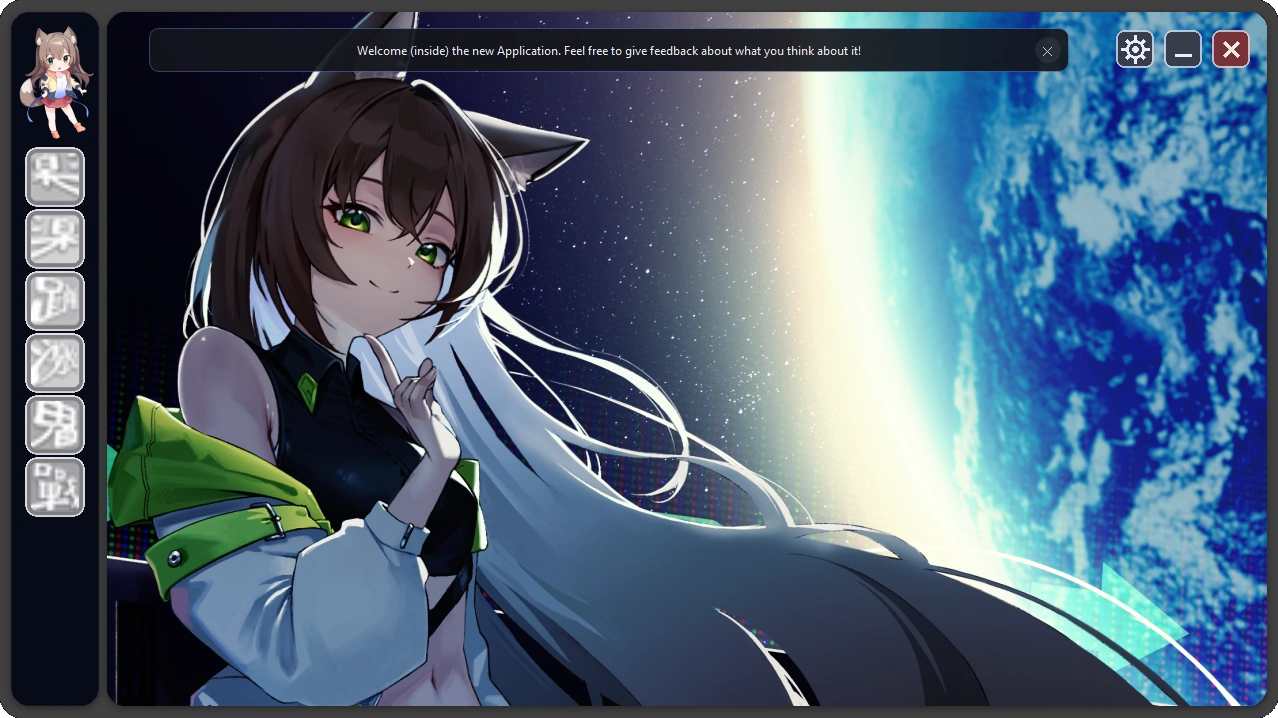
– Bundles by difficulty. Six ready-made bundles, from Beginner to Challenge+, one download each with nothing to set up.
Click the mascot at the top of the column to switch between packs and bundles.
Your quality, your way
– Built around your game. Tell it which game you play, and it only offers the options that game supports.
– Choose every format. Background resolution from 480p to 2160p (or none),
PNG or JPG images, banner size, audio from OGG 128 kbps
up to FLAC, and video in MP4 (H264 or H265), AVI or MPEG at standard or BD quality — or no video at all.
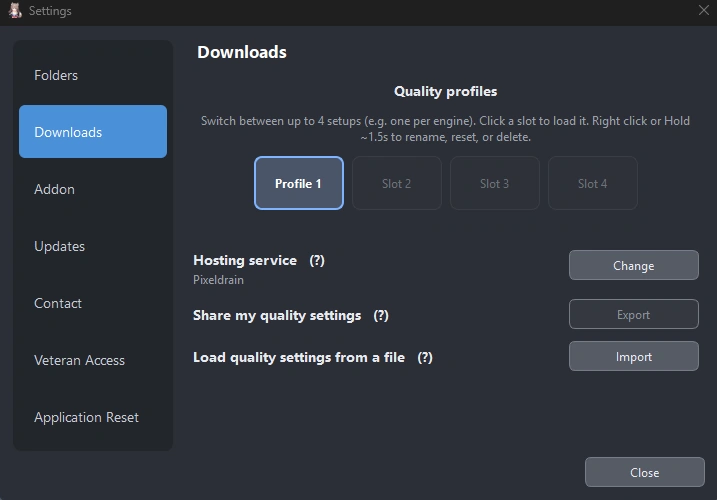
– Up to 4 profiles. Keep one setup per game, each with its own Songs folder, and switch between them in Settings.
– Share your setup. Export your quality choices to a small file, and a friend imports it in one click.
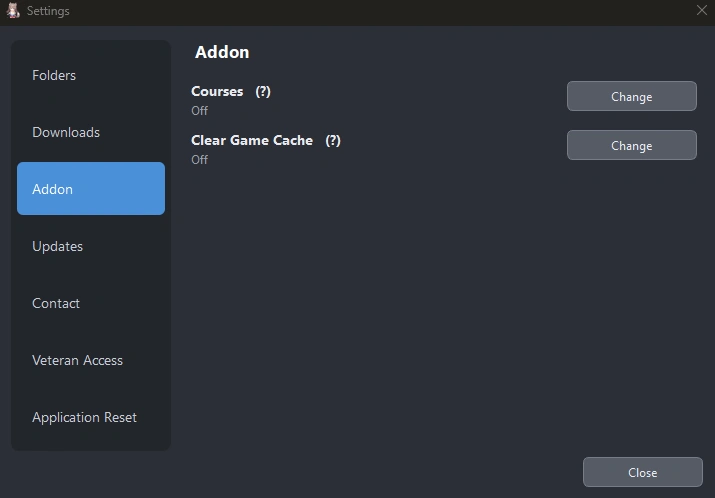
– Courses. For Project OutFox and StepMania 5, courses can come with each pack, straight into your Courses folder.
Downloads that just work
– Know the size first. The box above the Download button shows the download size.
Hover it to see the space needed while installing.
If a drive is too full, you’re told before anything starts.
– Picks up where it stopped. A dropped connection makes it wait a moment and continue.
Cancel any time and press Resume later.
– Switches host by itself. If 1fichier or Pixeldrain stops responding while your internet works,
it moves to the other one and carries on, keeping everything already downloaded.
– Checked before it’s installed. Every bundle is verified against a checksum, so a damaged download is never installed.
Extras
– Play from the app. Set your game once, and the Play button starts it.
If you like, the updater waits minimised and comes back when you close the game.
– Clear Game Cache (optional, advanced). After an update, it can clear your game’s song cache so new content shows up.
It always asks first, and only ever touches known cache files.
– Portable mode. Keep all your settings inside the app’s folder, and take them to another PC.
– Speed test. Check your download speed on your current hosting service from Settings.
– Updates itself. Update the app from Settings, with a look at what’s new first.
Getting started
Your first pack takes about two minutes to set up, plus the download itself.
1. Start EdmsUpdater. It loads the latest pack list, which takes a few seconds.
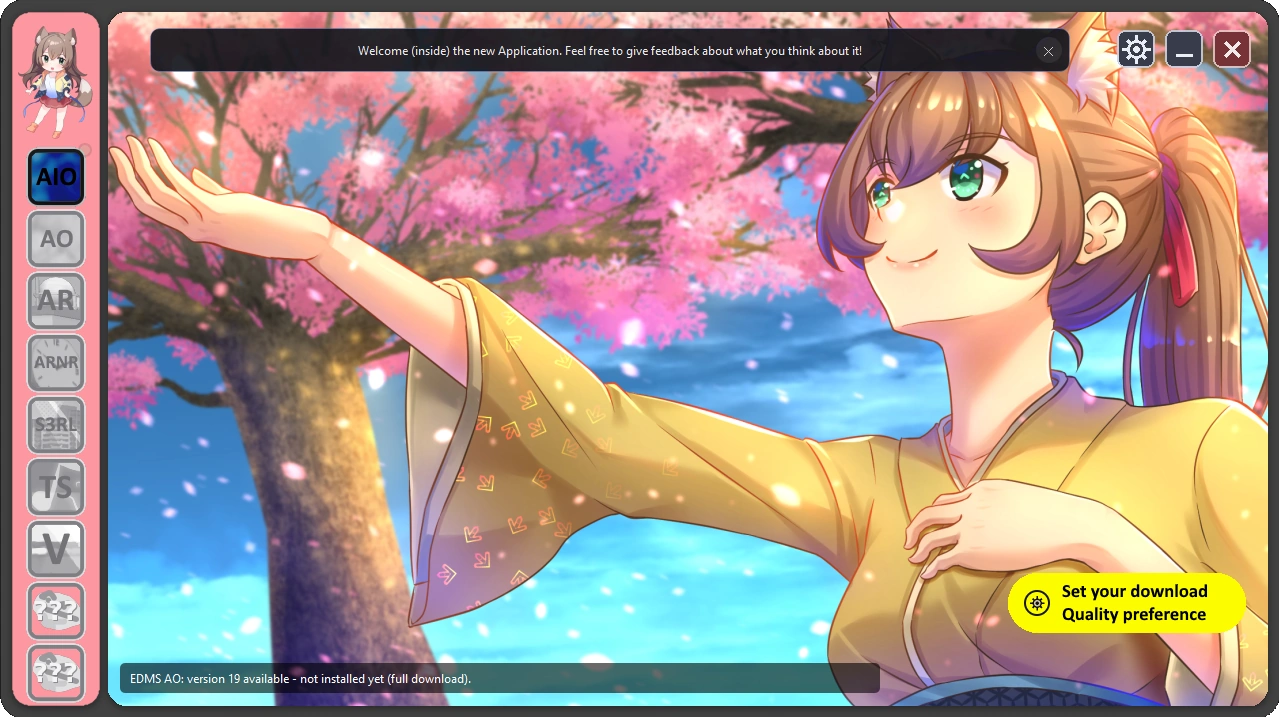
2. Pick a pack, or EDMS AIO at the top of the column for everything, then press Set download preference.
3. Choose how to start. Used the old EDMS application?
Pick Yes – Import my old settings and point it to that app’s src folder:
your quality choices, Songs folder and installed packs come along.
Otherwise, set things up fresh, or import a quality file a friend sent you.
4. Choose your game’s Songs folder when asked.
5. Answer the quality questions: your game first, then backgrounds, images, banners, audio and video.
6. Press Download. The bar at the bottom shows progress, speed and time left, and the pack’s icon fills up as it goes.
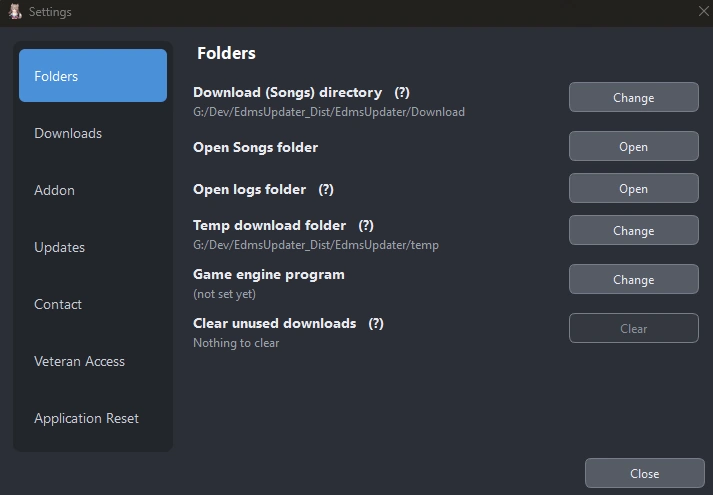
7. Press Play. The first time, it asks you to pick your game’s program once. You can also set it in Settings → Folders.
Staying up to date
The app checks for new versions every time it starts, and the dots tell you what’s waiting.
– Yellow dot on a pack: a new version is out. The button reads Small update when you’re one version behind
— only what changed is downloaded — or Update available for a bigger jump.
– Dot on EDMS AIO: green means nothing is installed yet and it’s the recommended start.
Yellow means updates are waiting.
– Orange dot on the gear: A new version of EdmsUpdater itself.
Go to Settings → Updates, where What’s new? Shows the changes and Update now installs it.
After an update, your game may still show the old version until its song cache is refreshed.
The app reminds you once, or does it for you if you turn on Clear Game Cache.
FAQ
Windows says “Windows protected your PC, or my antivirus complains.
The app isn’t code-signed yet, and that’s what triggers both.
Click More info → Run anyway. If you’re unsure, ask on the Discord before running it.
What are the locked icons under the packs?
Packs reserved for the veteran access.
They unlock in Settings → Veteran Access with the Veteran password.
I want a different quality.
Go to Settings → Downloads, right-click your profile (or hold it) and choose Reset quality, then set it up again.
Your packs are marked for download at the new quality.
If you change a format (PNG/JPG, FLAC/OGG or the video type),
delete the old EDMS pack folders first, or you’ll keep both versions.
Where do the files go?
Packs go into the Songs folder you chose, and courses into your Courses folder.
Downloads wait in a temp folder next to the app until they’re unpacked. Settings → Folders shows and changes all of them.
The download stopped.
It retries by itself first. If your internet is down, the app tells you.
Once you’re back online, press the button again and it carries on from where it stopped.
Can I take it to another PC?
Turn on Portable mode in Settings → Folders, then copy the whole app folder.
Your songs live in your game’s folder, so copy those too, or download them again.
The AppImage won’t start on Linux.
Make it executable first (right-click → Properties → Permissions, or `chmod +x`).
If it still won’t start, install your distribution’s FUSE 2 package, or run it with `–appimage-extract-and-run`.
Something went wrong.
Open Settings → Contact → Open error log, and post it in #app-bug-report on the Edmspack Discord.
Privacy
EdmsUpdater never sends anything about you or your PC:
No account, no ads, no tracking, no statistics.
It only connects to:
– My own servers, for the pack list, app updates and backup downloads;
– 1fichier or Pixeldrain, for the files you download;
– My server and Cloudflare, for a few seconds and only when a download fails,
to check whether your internet works.
Your settings stay on your PC, or in the app’s folder if you use Portable mode.
Support
Found a bug or have a question? Post in #app-bug-report on the Edmspack Discord,
with your error log from Settings → Contact → Open error log.
You can also contact me.
More picture of the Application
More details about possible false-positive anti-virus detection:
If your antivirus warns you about EdmsUpdater, don’t worry —
these are false positives, and the app is safe to use.
Here’s why it happens:
EdmsUpdater downloads files, extracts them, and can update itself automatically.
That’s exactly what an updater is supposed to do — but to an automated antivirus scanner,
“a program that downloads and runs files” looks the same whether it’s a legitimate updater or something harmful.
The scanners can’t tell the difference just by looking, so they sometimes guess “suspicious” to be safe.
This is made more likely because the app isn’t code-signed — signing certificates cost money each year,
which isn’t practical for a really small free project. Unsigned apps get flagged more often, even when they’re perfectly fine.
If your antivirus blocks it, you can allow it manually (usually by restoring it from quarantine or adding an exception).
Hoping you gonna like this new version of the Application.
Took me a long time to make something I am happy with.
Thanks for using EdmsUpdater and for trusting the project!